Featured Post

Why blog?

Blogging is one way to reflect on our practice as teachers with the purpose of making things better for the future and sharing ideas with ...

Showing posts with label Google Slides. Show all posts

Thursday, April 6, 2017

Literary Blocks

GUEST POST by Tracey Ryan, HS English Teacher

Everything in the English classroom is dependent on students reading the assigned texts.  I am always trying to figure out ways to engage students - to make them go back into the text to further their understanding.  Too often - I have them respond to quotes and write a "chunk."  For each chunk, students respond by providing context, close text analysis, and purpose. It's essential for them to understand how authors make meaning, but my selection of the quotes and the formulaic ways they are required to respond puts the onus for understanding and learning on me rather than the students.

After reading read a blog post from Dawn Lam [Mrs. Lam's Musings], I decided to "borrow" her idea of modifying the game "Cards Against Humanity."  I purchased wooden blocks from Amazon and wrote on each side a different literary device.  My class had finished reading the first four chapters of Lord of the Flies. Instead of me dictating what the students would examine in the first four chapters - I let them roll the block to determine what literary aspect of the first four chapters their group would examine.


After rolling for their literary device, the group had to figure out how they would present their analysis.  We've practiced with a few tech tools this year so I gave them free choice as to how they wanted to present their findings.  My suggestions included;  Google Slides, Google Drawings, Adobe Spark, Infographics, Hyperdocs or even just a Google Doc.    Most students played it safe and went with Google Slides but some ventured into Google Drawing, Adobe Spark, and Popplet.  Examples of some of the final products follow:
Imagery - Google Drawings


Characterization of Jack - Adobe Spark 


Analysis of Conflict - Google Slides


Analysis of Symbolism - Popplet


After sharing the assignment with my grade level team we came up with a series of variations on how to grow the assignment.  

  • Roll two blocks - one for the literary device - the other for the purpose.  We came up with two separate lists.  The device list included:  conflict, characterization, syntax, motif, imagery, figurative language (metaphor/simile, symbolism, personification, etc.).  The purpose list included:  theme, character,  setting, tone, mood/atmosphere, and point of view. Some of the devices are interchangeable with the purposes. (Thanks C.Kirch for the suggestion)
  • List the lens of literary criticism on the sides of the block and have students roll to determine through which lens they will examine the text.

Tuesday, March 21, 2017

Using Adobe Spark to Explore Essential Questions

Post by: Erin Thomas, High School English Teacher

One of the struggles I have been faced with as a teacher is figuring out how to encourage students to slow down and think critically about a complex topic or text. The art of “wondering” our way toward an answer over time seems to have dissipated as technology has made it increasingly easy for students to arrive at immediate resolutions. One way we have been combating this issue, and working toward fostering ongoing, academic inquiry is through the use of essential questions.


Last week, I introduced a project to my classes which uses Adobe Spark to engage students in an investigation of the essential questions associated with their current thematic unit. When I designed this project, one of my main focuses was to encourage my students, through the details of the project, to “wonder” about a topic over an extended period of time. I first introduced the essential questions to my students at the beginning of the unit when we started our first core work, Lord of the Flies. While reading and analyzing Golding’s novel, students explored the questions in relation to the core work, various poems, visual texts and nonfiction texts. Once we had finished the novel, I introduced the Adobe Spark project.


As I explained the project to my students, I made sure to emphasize that this would be a project that we would be adding to at different benchmark points throughout the unit. Again, one of the goals being to have students explore an essential question through multiple core works and ancillary texts. Since we have three core works for this unit, I decided to have students create the first segment now, before we begin All Quiet on the Western Front, again before we begin Antigone, and then at the end once we have reached the conclusion. By having my students revisit, and add to, their Adobe Spark videos over the course of the unit, my hope is that they will get to closely examine how their own understating of a topic evolves through a deep examination of multiple texts. For me, it is very important that I create opportunities for my students to participate in a rigorous academic environment, which teaches important skills by exposing them to rich and complex texts.


How the Project Asks Students to Think:
When I design any lesson, I always ask myself, "What kind of thinking do I want my students to do?" Below you will see the general outline of the type of thinking this project requires of students. By having them revisit the project three and this type of thinking three times, over the course of the unit, they will get to trace the development of their ideas, and hopefully see the benefit of "wondering."
Marrying Technology with Content:
In regards to the actual technology, most of my students had not used Adobe Spark before, but I did create one earlier in the month to give them a refresher on how to write a theme statement, so they had seen it used before, just in a different context.


For those who are unfamiliar with the technology, Adobe Spark is essentially a forum that allows users to create video slideshows. The site offers various layouts, themes, music and voice recording capabilities, all are fairly simplistic and extremely user friendly.


Since I did this project with both my honors and CP classes, I outlined my modifications below. As I have been working as a tech fellow this year, I have been learning that I have to consider not only how I scaffold content, but also how I scaffold tech.


Honors
College Prep
  • Introduced project
  • Five minutes to explore the technology
  • Students created slides
  • Next day follow-up, completed voice recordings
  • Introduced tech the day before I introduced the project; allowed time for students to explore the technology
  • Introduced project; showed Teacher Model EQ
  • Provided students with a SLIDE ORGANIZER which I required them to complete before creating anything in Adobe Spark
  • Next day, students created slides and completed voice recordings using the organizer as a “script”
A note on CP modifications:

My rationale for making these choices is really based on what my honors students are ready to do at this point in the year. My desire for second semester to be a release of responsibility back to all of my students; however, my CP classes still require some additional scaffolding.

In addition, I made the choice to introduce the tech to my CP students at the end of the period, the day before I assigned the project, because that class in particular can get a little excited when we try something new. For my own personal sanity, this modification was key. They were incredibly focused the day they actually started the project because they had already had time to squirrel around with the tech the day before.  


Per the advice of my tech coach. I had my students submit their projects on a class slides which I posted to Google Classroom. They simply added their group names and the shareable link to their Adobe Spark videos


Overall, I was pleased with how these projects turned out in all of my classes. The feedback I have gathered so far from my students has been general, but here are their overall impressions:


  • They prefer Adobe Spark to screencasts
  • They had fun coming up with their own connections for the project
  • They preferred to create the slides in Google Slides first, and then transfer those slides into Adobe Spark, because this made it easier for them to collaborate


Sample Student Projects:


CP Student Sample
* As a side note, the essential questions I gave my CP students were slightly different HERE are their specific project guidelines

HERE is a link to the rubric I created to provide feedback to the groups. 


A few tidbits about using Adobe Spark:

  • As noted by my students above, it does not have a collaborative feature, so if you want student groups to create one video, it would be worth considering having the begin in Google Slides. They would then have to upload each slide as a JPEG into Adobe Spark, but my students assured me that this wasn’t too labor intensive.
  • Encourage students to keep the responses to 20 seconds or less. If they feel like they have more to say about a particular slide, they can simply “duplicate” it and continue their recording.
  • I had to constantly remind ALL, despite my models, to not write everything they were planning on saying on each of their slides. Once they thought of themselves as the narrator of their video, they were fine.

If you are looking for a way to increase the "wondering" in your classroom through essential questions and technology, this is a great way to go about it. Happy Adobe Sparking-ing!

Wednesday, July 20, 2016

Improving Student Learning through Instant Feedback & Constant Communication (Tracy Dawson)

This is in a series of posts by teachers in the TUSD Connect Fellowship for the 2015-2016 school year. I hope you enjoy reading their reflections on the impact of technology in their classroom, specific tools and strategies that have made a positive impact on teaching and learning, and their goals moving forward.

Technology has transformed my classroom this year!

I have infused technology in my lessons in previous years but through this Technology Fellowship I have created a learning environment that is dynamic, effective, and efficient for my students all driven by the purposeful use of technology.  I teach Human Body Systems (HBS), AVID, and Biology CP and I have integrated technology into each of them in different ways.  

One of the major shifts this year in HBS is making my labs digital.  There is a lot that goes into digitizing a lab so the process has been quite an undertaking but the benefits make it completely worth the time invested.  I utilize Google Classroom in HBS (as well as in AVID and Biology).  The organization of Google Classroom and Google Drive has been a great way for my students to have a place to go to for all labs/handouts/links/announcements/etc.  It avoids students being confused on where to go to get the document or link and it allows for students to have a “homebase”.  In HBS, the students complete a lab about once a week and before digitizing my labs I was not completely satisfied with the way I was checking their progress or their understanding besides informal assessments and check-ins and Friday Quizzes (which at that point was a bit late).  I now can give every student real-time feedback as they are completing their lab through the great collaborative feature of Google Docs.  I have a running dialogue with my students about their lab and it is a place they can ask questions and I can clarify key points as well as checking in on their progress on the lab.  My HBS students are very comfortable with Google Classroom and Google Drive so I can ask them to take pictures of their dissections spur of the moment and they are able to digitally label them in a Google Drawing and upload them to Google Classroom so I can grade their dissections more thoroughly and they can have their labeled dissection to review. Here is an example of a labeled Digestive System from the Fetal Pig Dissection.  


Here are a few other ways technology impacted teaching and learning... with samples for you to look at!
  • I embedded Quizlets into GoFormative for all three of my classes as formative assessments as well as review for the students.  Here is an example of a quizlet embedded into GoFormative for a Biochemistry review for my Biology CP class.  


  • Google Drawings - The students created Google Drawings of concept maps for the Endocrine System as well as for the Insulin/Glucagon Feedback Loop in the Human Body.  Here is a Student Sample of the Insulin/Glucagon Feedback Loop.  In previous years, I had the students draw their concept maps and feedback loops on paper and I was not able to fully review them until they turned them in which was on the day of the quiz so it was too late to fix major misconceptions.  Having the students create them on Google Drawings allowed me to write comments on them as they were making them so misconceptions were dealt with right away.    

  • I also used Quizizz, Socrative, Let’s Recap, and GoFormative to do concept checks and for the students to review for the quizzes and tests in our class.  Anatomy has a lot of terms that the students need to know and the spelling is important so the Quizlets I embedded into GoFormative were particularly helpful because they tested my students on definitions, spelling, and being able to label diagrams.

  • I also utilized Google Forms (for reflections and to collect data), Padlet (get to know activity, summing up lessons, and reflections), and ThingLink (making a diagram of a cow eye more dynamic by adding “tags” to label each part, stating its function, and inserting videos).

  • AVID - Digital Journals (student-teacher dialogue), Google Forms (grade reflections, submitting questions for Socratic Seminars).  All of these allowed me to actually read and provide timely feedback to each of my students which was more difficult and time consuming to do when they wrote their journals on paper.  Before I digitized the journals and reflections in AVID, it took me so long to read them and I felt that in the time it took for me to get my written feedback back to my students, part of the impact of the feedback was lost.  Now, I am able to give immediate feedback and it helped me in the beginning of the year to get to know my students very quickly.

  • Biology - Collaborative labs on Google Docs, Google Forms (submitting lab data, reflecting on test/unit/grade in class), Google Slides (visual vocabulary), Google Drawing (Karyotype Activity), Quizizz, GoFormative, and Padlet.


I am very excited to continue to refine my use of technology in my classroom next year.  This summer, I plan to complete the certification and exams to become a Google Certified Teacher (Levels 1 and 2).  I am also planning on taking two technology courses online (“Flipping the Classroom” and “All Things Google”).  Finally, my new obsession, Twitter!  I will continue to connect with educators on Twitter to grow and develop my purposeful use of technology in the classroom.

I cannot begin to say how impactful this fellowship has been on my teaching practice.  I went from someone who would sometimes shy away from using certain things because I assumed the students wouldn’t have their devices (mostly in Bio) or not knowing if it was going to work well to now wanting to try every awesome idea that I come across!  Like most things in a teacher’s classroom, if it is set as an expectation from the beginning of the school year, then a teacher will have a lot less trouble during the year.  In my class, having your device everyday is like having a pencil and paper.  I also found the more willing and open I am to trying new things in my classroom, the more willing my students are.  There were times when I used a certain technology in my class and I thought “that was okay” but I can make it way better by tweaking a few things or using a different technology to accomplish the same goal in a more effective manner.  But the fact that I was not afraid to try the technology and my students were willing to engage in their learning through the use of a specific technology helped me to discover the things that worked best in my classroom and worked best for my students.

Tracy Dawson is a Human Body Systems, Biology, and AVID teacher at Beckman High School in Irvine, CA.  She is an innately curious person and considers herself a “lifelong learner”.  Tracy is a self-professed science and tech nerd and loves to be constantly adding to her “tech toolbelt” and enhancing her teaching and her students’ learning through the purposeful use of technology.  Tracy also serves as AVID Coordinator and a mentor teacher in the science department.  

Sunday, May 29, 2016

Tried and True Lessons Made New (Stephen McGill)

This is in a series of posts by teachers in the TUSD Connect Fellowship for the 2015-2016 school year. I hope you enjoy reading their reflections on the impact of technology in their classroom, specific tools and strategies that have made a positive impact on teaching and learning, and their goals moving forward.

Every year I feel like a new teacher. While I build upon the successes of the past, I am constantly evaluating to what extent the activities I have designed are meeting the needs of my current students. To this end, the frequency and scope of my implementation of technology in the classroom this year represents a dynamic shift in my teaching. I have used several applications to what I perceive to be great results in the past. However, through the coaching process, my repertoire of applications has increased dramatically. I am now able to move more seamlessly between various apps and select an appropriate tool for specific lessons.

If student learning is simply a function of exam scores, then the use of technology in the classroom is having a demonstrably positive effect on student outcomes. More importantly, using technology has also increased student engagement and class participation, When I provided a one or two page activity on printed paper, most students would dutifully answer the questions or respond to the prompts with just enough elaboration to address the prompt and support the response with evidence. However, I have noticed throughout the past year that when similar activities are pushed out via Google Classroom, the depth and complexity of students’ responses has increased steadily.

The following student samples demonstrate the depth of their preparation on an activity that would typically have a one or two page response.


The following applications represent what I will continue to use as an integral part of my teaching.
  • Google Classroom
  • Google Drive
  • Google Docs, Slides, Drawings
  • Google Forms
  • Padlet
  • Verso
  • GoFormative
  • Haiku (discussions, polls, content management)
  • Quizizz
  • Kahoot
  • Ancillary Resources (videos, websites)


Google Drawing
While many of my lessons and activities may look similar to what I have done in the past, I know I have made incremental, though profound changes that have ultimately resulted in better lessons and increased student engagement and performance. For example, using Google Drawing for my previous “Tell the Story” framework has resulted in significantly better results. Exam scores and commentary during the class discussions and debates reflect this increased understanding both quantitatively and qualitatively.

Here is a student example that demonstrates the connections between significant events during President Jefferson’s tenure in office from 1801 - 1809.


Presentation on Google Classroom and Google Drawing
I had the great privilege of presenting this year at the TUSD Connect Institute 2016 with my Digital Learning Coach and mentor Crystal Kirch. We presented an overview of Google Classroom and demonstrated the use of Google Drawing, Docs, and Forms in the classroom. Please use the following link to access the slides and the examples.


Padlet
While I use several applications in my teaching interchangeably throughout the year, Padlet has always been my “go to” platform for expedient and purposeful student responses. Earlier this year, I used Padlet to facilitate responses from my students regarding the excerpt I had each of them read from Babbitt, by Sinclair Lewis. The purpose of the reading was to provide students with a glimpse into the world of a successful businessman, who in the beginning of the 1920s, represented the upper-middle class.

At the beginning of class, I provided an introduction to various book covers of Babbitt. Students shared their interpretations during our class discussion. I had students listen to the title track from The Lego Movie titled “Everything is Awesome.” I asked them to comment to what extent this would serve as a theme song for the 1920s. Shortly after, I assigned various groups specific prompts regarding the text as it relates to today.

Here is a sample of what student responses to a prompts regarding the text as it relates to today look like on the Padlet wall.

Padlet - The Epilogue
While the class discussions were on point and revealed the striking parallels between the 1920s and today, I learned an even more valuable lesson regarding instructional practices from this experience.


The BREAKTHROUGH of my Tech Journey!

Specifically, I am constantly considering how and in what way I want my students to interact with the material. As I reflected on this experience, I came to following conclusions:

  • I employ the use of technological applications most frequently when I am confident that my students are well-versed and prepared with regard to the topic at hand. I often use applications such as Padlet, Formative, Verso, Kahoot, or AnswerGarden.

  • If I am NOT confident that my students understand the material, I am finding that I move away from using technology and go directly to providing prompts for students in pairs or groups to begin the discussion and to provide the opportunity to conduct research. If students do not know the material very well, I am finding that their responses via any technological application will not reveal startling insights or spark an epiphany among their peers. As such, why employ the use of an app and valuable class time for the sake of using technology?


My Conclusions

My answer to my own questions is that I always consider the ultimate purpose for having students use applications as I plan lessons. My decisions are based upon the following criteria:

New concept/material
Use a class prompt/stimulus and provide time for students to reflect, discuss, research, and share.
Significant preparation and familiarity
Use an app or technological platform to showcase/broadcast understanding


Verso
As I mentioned previously, I use several apps to elicit student responses and to prompt student discussion and interaction. While Padlet serves as an expedient and purposeful tool for showcasing student responses, I have used Verso specifically to highlight students writing, NOT student authorship. In other words, it has been my experience that many students will evaluate student writing samples based upon who the author is and not upon the quality or cogency of the actual writing.  

To this end, Verso has provided an excellent platform that allows students to anonymously post their responses and provide feedback to others without the bias inherent with authored posts or comments.

Here is a sample of what student responses to a prompt using Verso looks like on on the screen.


The Tech Fellow Journey Continues…

Based upon the impact that the use of technology has had upon my teaching and the success of my students, I am eager to refine, revise, and create activities that will continue to encourage the exchange of information, ideas, and perspectives among my students. Although I used the apps highlight below this year, I will make a concerted effort in the near future to employ these apps more consistently and comprehensively to encourage student interaction and learning in my classroom.


While the following tools are NOT in my toolbelt at this time, I plan to explore each and implement them in the classroom with my students next year!


My Final Thoughts as a Tech Fellow
Although I am approaching the end of my 18th year in education, this is my first experience having a dedicated, weekly mentor to help me improve and refine my practice. I think it goes without mentioning that it was long overdue. As such, I want to continue to improve my craft and develop new lessons utilizing the apps and ideas I have learned and implemented throughout the year. The evolution and use of technology and its use in the classroom will only hasten with time. As such, I feel more confident in my ability to use new and existing apps, to reinvent old lessons and activities, and to develop new experiences for my future students with apps that may not even be developed.

The Tech Fellowship has been a welcome and enriching professional and personal experience. Teaching six classes and 200+ students does not always afford me the time to search for technological solutions to pedagogical problems. The Tech Fellowship has provided me with a dedicated partner to help me negotiate this process. Additionally, I feel more confident in my ability to develop and use a wider array of apps with my students. The more apps I learn  and use, the easier it is to use them in the classroom. Consequently, the more I use a variety of apps in the classroom, the easier it is for my students to respond more efficiently and more meaningfully. Furthermore, my tenure as a Tech Fellow has empowered me to what I have learned with my students and with my colleagues.

About the Author
Stephen McGill has been teaching in the Tustin Unified School District since he entered the profession in 1998. He currently serves as the History/Social Science Department Chair at Beckman High School in Irvine, a position he has held since the school opened in 2004. He has taught a wide-range of courses to students in grades 6 - 11 from language arts and history in middle school to Advanced Placement United States history in high school. He started his career at the middle school level at Columbus Tustin Middle School. After one year, he served as a member of the founding staff at Pioneer Middle School where he served as department chair until he joined the Beckman faculty. Most recently, Stephen has joined the faculty at Concordia University in Irvine in his newest role is as an adjunct professor where he teaches the introductory course to students who have enrolled in the teaching credential program and who aspire to join the profession.


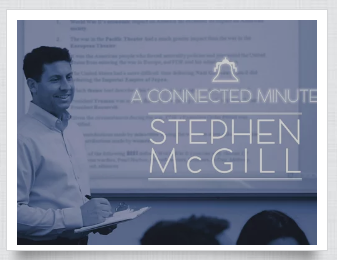
Watch the “Connected Minute” video to learn more about Stephen and his perspective on teaching and family.